
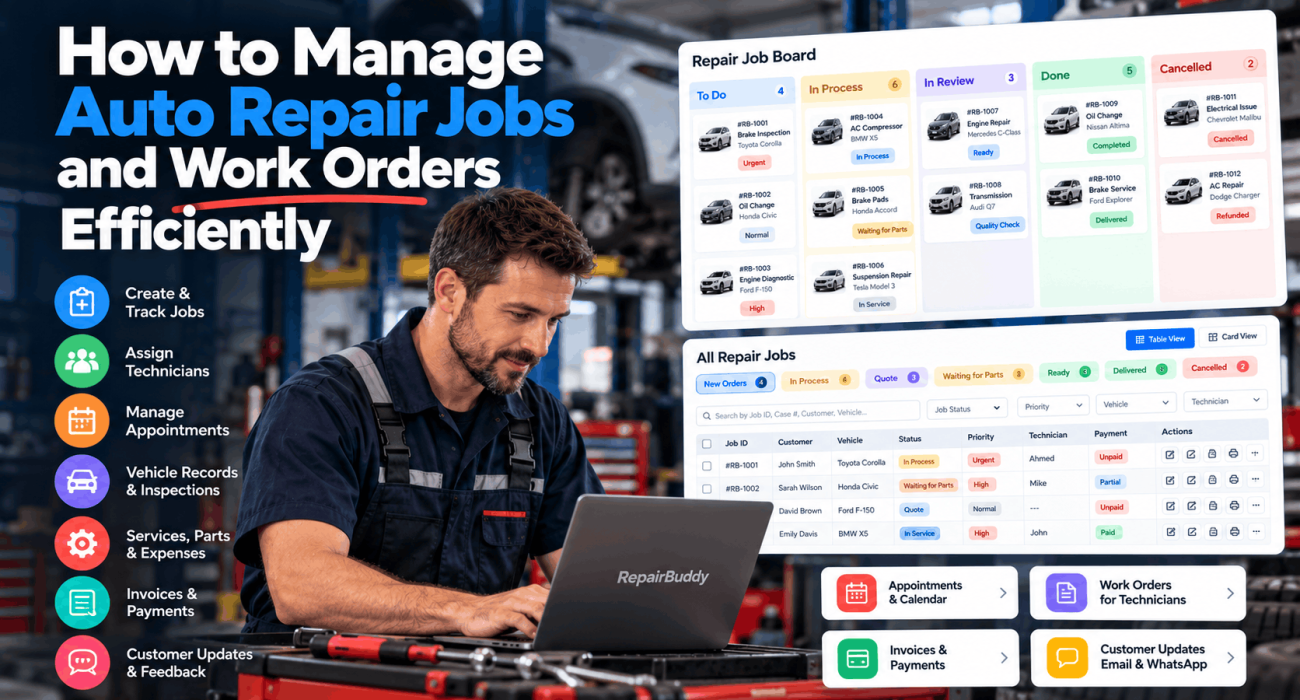
Managing an auto repair shop involves much more than fixing vehicles. Every day, a workshop may need to coordinate new repair requests, prepare estimates, assign technicians, track vehicle progress, manage parts and expenses, collect payments, communicate with customers, and schedule follow-up service.
When these activities are handled through separate tools, spreadsheets, paper forms, or scattered messages, it becomes harder to keep track of every vehicle and repair job.
A structured auto repair job management system helps bring these activities together. It gives shop owners visibility into work in progress, helps technicians understand their responsibilities, and makes it easier for staff to keep customers informed.
In this guide, we’ll explore how to manage auto repair jobs efficiently, organize work orders, track repair progress, coordinate technicians, document vehicle conditions, and manage jobs through completion.
1. Why Auto Repair Job Management Matters
Every repair job has its own requirements. One vehicle might need routine maintenance, while another requires diagnostic work, replacement parts, and several hours of labor. Some jobs can be completed immediately, while others must wait for parts or customer approval.
Without an organized workflow, repair shops can encounter problems such as:
- Losing track of urgent repairs.
- Forgetting upcoming customer appointments.
- Assigning work without checking technician responsibilities.
- Delaying jobs because parts have not arrived.
- Losing important vehicle inspection details.
- Struggling to find a job’s payment or repair history.
- Missing opportunities to request customer feedback or schedule future service.
Effective job management creates a consistent process for handling these situations.
Instead of relying on memory, staff can use job statuses, priority levels, calendars, technician assignments, and repair records to understand what needs attention.
2. Prioritize Repair Jobs and Urgent Work
Not every repair job has the same level of urgency. A workshop may have a vehicle requiring immediate attention alongside routine maintenance jobs and repairs that can wait.
An effective system should make important jobs visible without requiring staff to search through the entire job list.
RepairBuddy provides a dashboard that displays priority jobs according to the signed-in user’s access and permissions. High- and urgent-priority jobs receive visibility on the dashboard, while medium- and normal-priority jobs can be reviewed on the jobs page.
This helps shop staff identify work that needs immediate attention.
For example, a workshop might have three jobs:
- Urgent: A vehicle requiring immediate diagnostic attention.
- High: A repair that needs to be prioritized in the workshop schedule.
- Normal: Routine maintenance that can proceed according to the planned workload.
Staff can use job priority to distinguish these cases and organize their work accordingly.
Priority management is particularly useful when a shop has many active jobs and needs a quick way to identify which ones deserve attention first.
3. Use a Repair Job Board to Track Every Stage
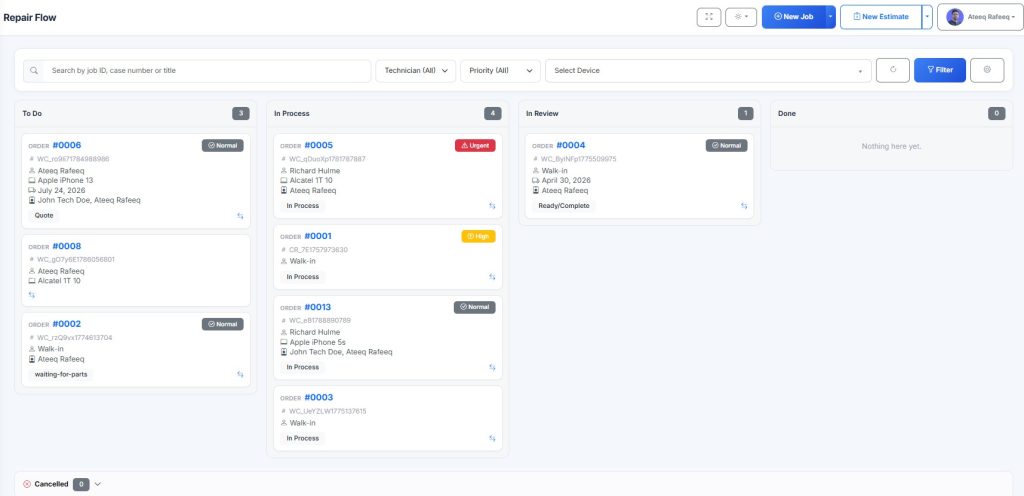
A repair job should not disappear into a long list after it has been created. Staff need to know whether the vehicle is waiting to be processed, actively being repaired, undergoing quality checks, or ready for delivery.
A visual job board makes these stages easier to understand.
RepairBuddy provides a board-style repair workflow with five stages. Shop administrators can define the statuses associated with each stage to match their workshop process.
The five stages of the RepairBuddy job board
RepairBuddy provides a visual, five-stage repair job board. Administrators can configure the job statuses associated with each stage to match their workshop’s workflow.
1. To Do
New jobs and jobs with quote-related statuses appear in this stage. Staff can identify work that still needs attention.
2. In Process
Jobs with statuses such as In Process, In Service, and Waiting for Parts appear here. This helps staff distinguish active repairs from jobs awaiting parts.
3. In Review
Jobs with statuses such as Ready, Complete, or Quality Assurance can appear here for final checks before delivery.
4. Done
Completed or delivered jobs appear in this stage, giving the workshop a clear view of finished work.
5. Cancelled
Cancelled, refunded, or failed jobs are grouped separately from active repairs.
The advantage of this approach is that staff can understand the overall repair workflow at a glance. They can see where work is concentrated and identify jobs that may need follow-up.
Because the statuses associated with the stages are configurable, repair shops can adapt the board to their own operational process.
4. Find Any Repair Job Without Searching Manually
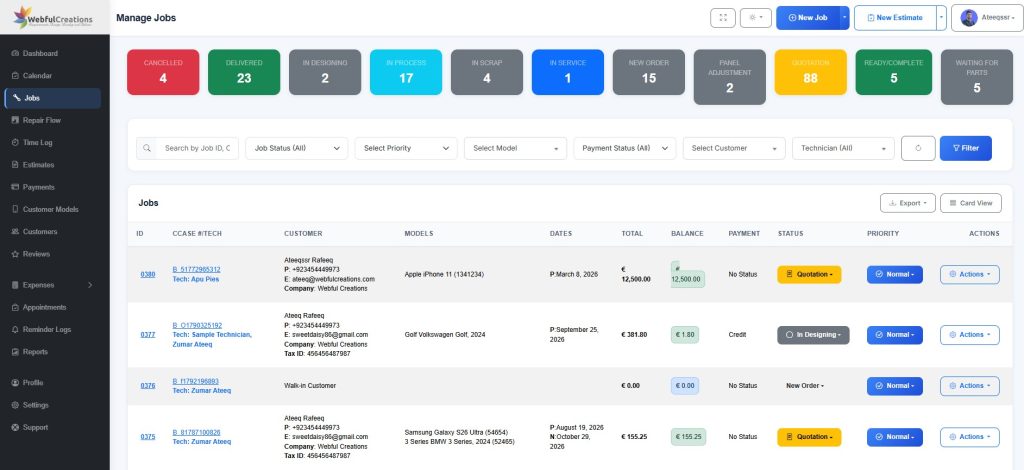
As a repair business grows, finding a particular vehicle or customer in a long job list becomes increasingly important.
A useful auto repair job management system should let staff search using information they already know.
RepairBuddy’s Manage Jobs screen provides search and filtering options for:
- Job ID.
- Case number.
- Customer title.
- Device or vehicle.
- Job status.
- Priority.
- Vehicle.
- Payment status.
- Customer.
- Assigned technician.
For example, a manager who wants to review the work assigned to a particular technician can filter the job list by that technician. Staff can also narrow the list to jobs waiting for parts, urgent repairs, or jobs with a particular payment status.
Quick access through status badges
The top of the Manage Jobs screen displays status badges for categories such as New Orders, In Process, Quote, Waiting for Parts, Cancelled, Delivered, and Ready/Complete.
Selecting a badge takes staff to the corresponding group of jobs.
This is useful when a manager wants to review all waiting-for-parts jobs or check which repairs are ready for delivery without building a search from scratch.
Choose a list view that suits your team
RepairBuddy supports both table and card views for the jobs list.
A table view is useful for scanning many jobs and comparing their details. A card view provides an alternative visual layout for staff who prefer to review jobs individually.
The goal is to make job information easier to find and act on, regardless of how many repairs the shop is managing.
5. Perform Common Job Actions Without Opening Each Job
Opening every job individually to make small changes can slow down daily workshop administration.
RepairBuddy allows users to perform several common actions directly from the jobs list, including:
- Change a job’s status.
- Change its priority.
- Receive a payment.
- Print an invoice.
- Download an invoice as a PDF.
- Email the customer.
- Duplicate a job.
Consider a manager reviewing a list of completed repairs. Instead of opening every record, the manager can use the available list actions to update relevant information or handle an invoice.
Duplicating a job can also be useful when a similar repair needs to be created again, rather than entering all the information from scratch.
These shortcuts reduce unnecessary navigation and help staff handle routine administrative tasks more efficiently.
6. Understand the Complete Job at a Glance
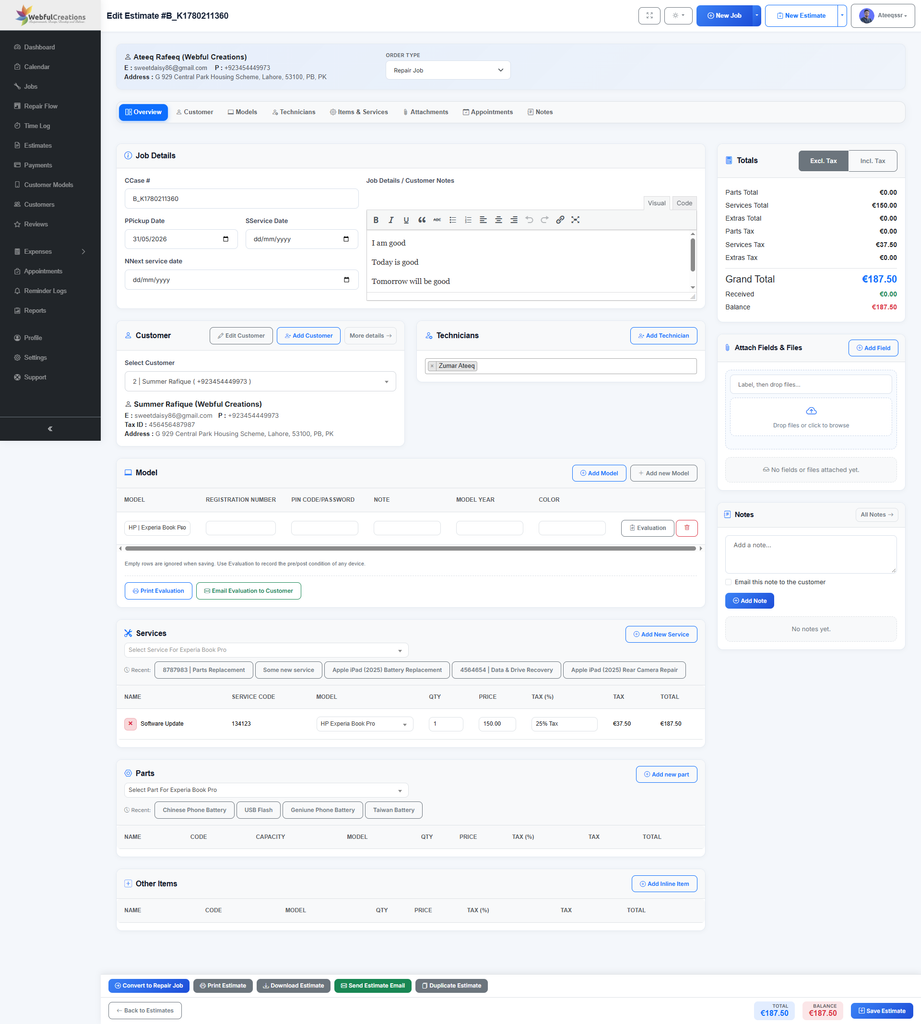
When staff open an individual repair job, they need to understand its current state before reviewing the details.
RepairBuddy’s job management page includes a progress bar showing the stage of the repair. A summary area displays key information such as customer details, order status, payment status, priority, and order type.
The job record also supports important scheduling and identification details, including:
- Case number.
- Pickup date.
- Delivery date.
- Next service date.
- Job details and notes.
The job details field uses a rich-text editor, allowing staff to organize information with line breaks, bullet points, and other supported formatting.
This is useful for recording repair instructions, diagnostic observations, requested work, or other information relevant to the job.
Keeping these details in the job record gives authorized staff a central place to review the repair rather than relying on separate notes.
7. Keep Customer Information Connected to Each Job
A repair record is more useful when the customer information is connected to it.
RepairBuddy lets staff add a customer, search for an existing customer, or edit customer details from the job management workflow. The selected customer can then be associated with the repair.
This helps the workshop maintain a connection between the repair work and the person who requested it.
Customer information is also important when handling communications, appointments, invoices, and future service needs.
RepairBuddy supports different user levels, including customers, technicians, store managers, and administrators. The information and dashboard features available to each user depend on their access and permissions.
This role-based approach helps users focus on the jobs and responsibilities relevant to them.
8. Assign Technicians and Review Time Logs
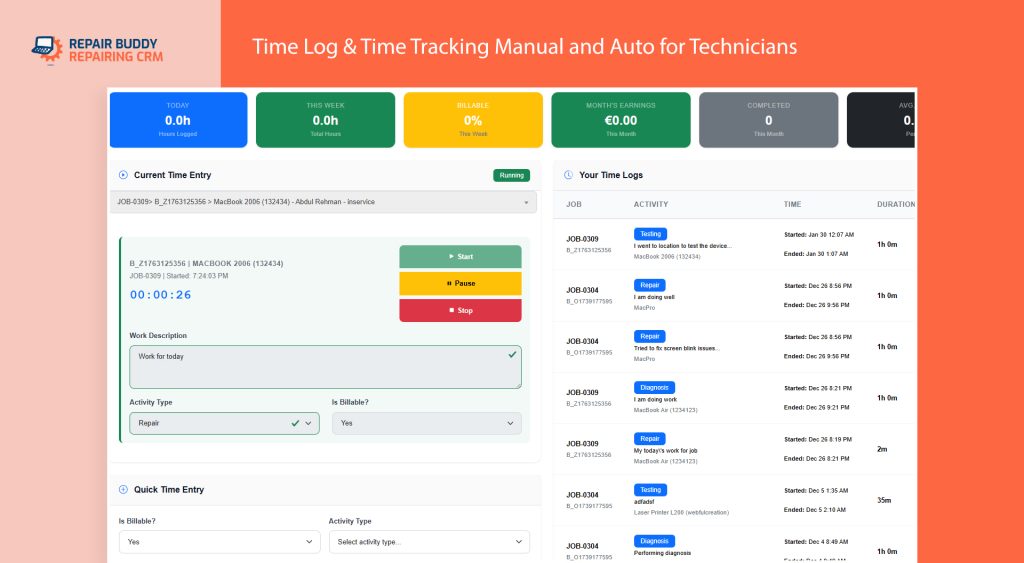
Technician coordination is a key part of auto repair job management.
Some repairs may require one technician, while more complex jobs can involve multiple technicians. Managers need a way to associate the relevant people with each repair.
RepairBuddy allows a job to be assigned to multiple technicians through its Technicians section.
Where technicians track their work using time logs, the job page also allows staff to review those logs.
This gives the shop a way to connect technician assignments and recorded work time with the relevant job.
For example, a manager reviewing a repair can check which technicians are assigned and examine their time logs when available.
For shops that monitor labor utilization or want better visibility into the time spent on repairs, keeping technician assignments and time records connected to individual jobs can be valuable.
9. Record Vehicle Details and Pre-Repair Evaluations
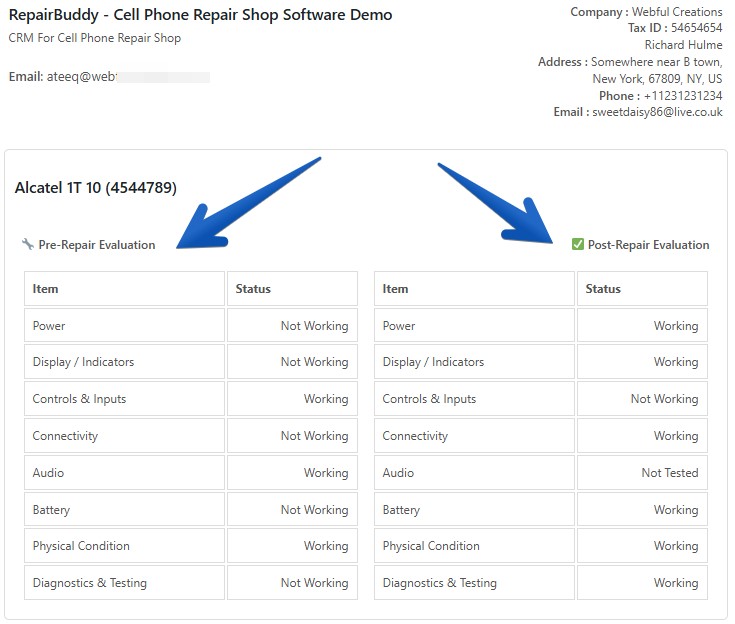
Vehicle information is central to an automotive repair job. Staff need to identify the vehicle correctly and record relevant details before work begins.
RepairBuddy’s Vehicle section supports information including:
- Vehicle registration number.
- Vehicle color.
- Odometer reading.
- Model year.
Staff can add a vehicle to a job and can include multiple vehicles when a job relates to more than one vehicle.
Document vehicle condition before and after repairs
Pre-repair and post-repair evaluations help shops document a vehicle’s condition at different points in the repair process.
RepairBuddy supports both pre-repair and post-repair evaluations. Staff can print or email evaluation reports for customers.
This can help create a clearer record of the vehicle’s documented condition and provide customers with information about the inspection.
For a workshop, keeping evaluation reports associated with the repair job is more practical than relying entirely on loose paper forms or separate documents.
It also supports a more consistent process for documenting vehicle condition before work begins and after the repair has been completed.
10. Organize Services, Parts, and Additional Items
An auto repair job can involve multiple services and replacement parts. A repair record should bring the relevant work and items together so staff can understand what is included.
Within RepairBuddy’s Jobs section, staff can add services, parts, and extras related to the vehicles associated with the job.
This helps organize the work being performed and the items associated with the repair.
The job’s sidebar displays totals, and staff can add files to the record. Attachments may include before-repair and after-repair photographs, contracts, or other relevant documents.
Keeping services, parts, extras, totals, and supporting files connected to the same job gives the workshop a more complete record of the work.
It also makes it easier for authorized staff to return to the job later and review the information associated with it.
11. Manage Payments, Invoices, and Job Expenses
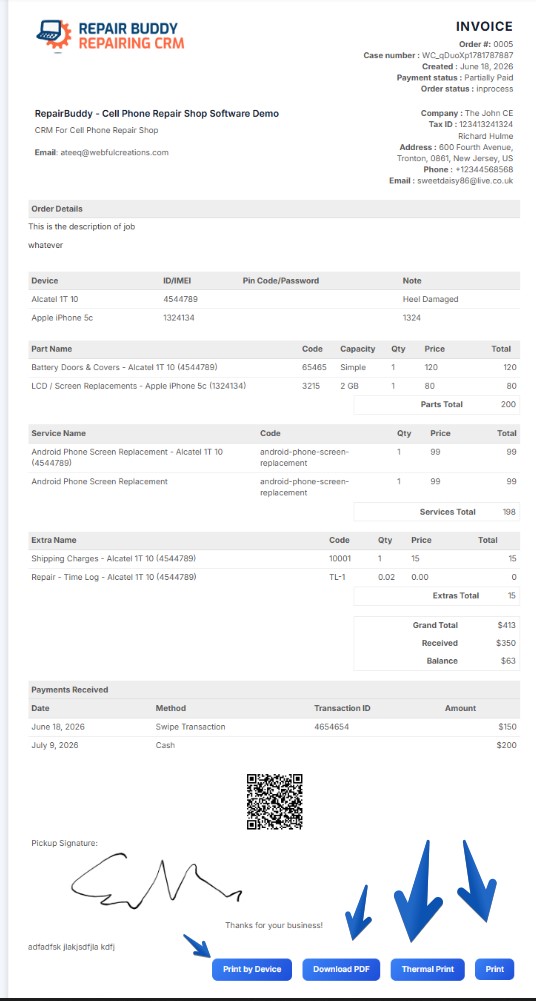
Repair work also involves financial administration. Staff need to keep track of payments received and the expenses associated with individual jobs.
RepairBuddy supports online and offline payments on jobs. Users can also receive payments from the jobs list, print invoices, and download invoice PDFs.
The job management page includes an Expenses section where staff can add expenses related to the job.
Keeping job-related expenses and payment records associated with the repair helps the business maintain a more organized record of its financial activity.
For example, staff can review the job’s payment status, access its invoice, and examine recorded expenses without treating each item as an unrelated administrative task.
Shops should still follow their own accounting procedures and verify that job records are reflected correctly in their financial reporting process.
12. Schedule Appointments and Use the Job Calendar
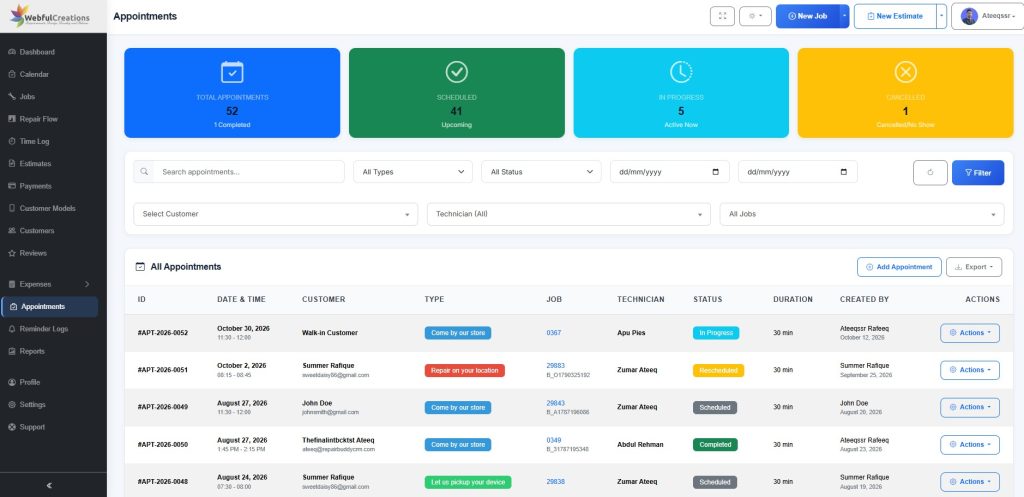
Repair jobs often involve several appointments, such as vehicle drop-off, inspection, or pickup.
RepairBuddy allows staff to set up appointments related to a job and its customer.
The dashboard also displays upcoming appointments relevant to the signed-in user. Customers can request appointments and see the appointments they need to attend.
Use the calendar to see work across the shop
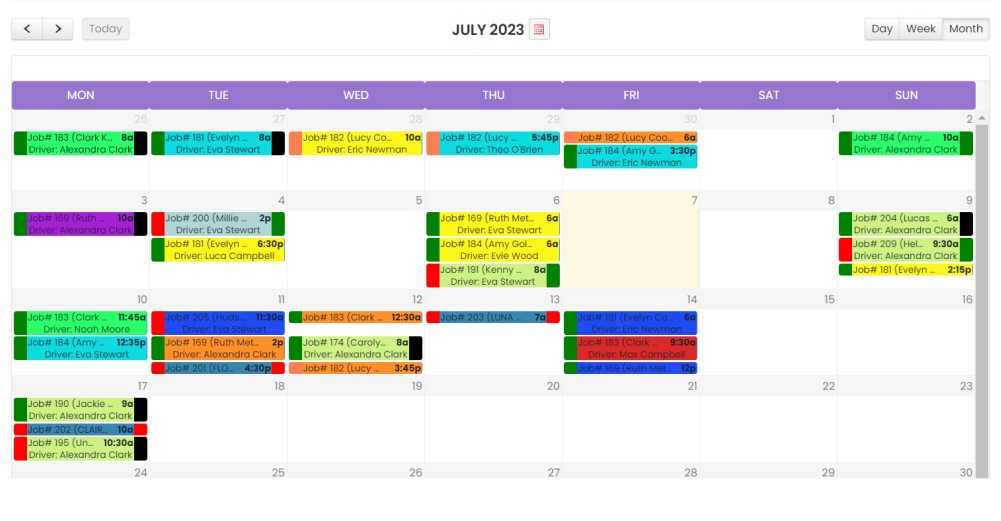
RepairBuddy’s calendar brings jobs, estimates, and appointments into a shared calendar view.
Users can filter calendar information by:
- Jobs, estimates, or appointments.
- Jobs assigned to them.
- Appointments they need to attend.
- Estimates they need to follow up on.
- Job creation date.
- Pickup date.
- Delivery date.
- Next service date.
This provides different ways to review the workshop schedule.
For instance, a manager can review upcoming delivery dates, while a technician can focus on assigned work and relevant appointments. Staff can also review next service dates to identify vehicles with scheduled follow-up needs.
A shared calendar makes it easier to see these different activities without treating each one as an isolated record.
13. Keep Job Notes and History Together
Repair jobs can change as work progresses. A repair may require additional investigation, a change in status, new documentation, or follow-up with the customer.
RepairBuddy includes a Notes section and a History section within job management.
Notes provide a place to record relevant information about the repair.
The History section records the process from the beginning through its later stages, allowing staff to review the recorded steps associated with the job.
This historical record can help staff understand how a repair progressed and refer back to its previous activity when questions arise.
Maintaining notes and history alongside the job details helps reduce dependence on separate communication channels and individual memory.
14. Use Work Orders, Repair Tickets, Labels, and Contracts
An auto repair shop needs different documents for different purposes. A technician does not necessarily need the same information as a customer, and a printed invoice serves a different purpose from a repair tag.
RepairBuddy provides several printing and document options to support these workflows.
Work orders for technicians
A work order can provide technicians with the information they need to carry out the repair.
RepairBuddy’s technician work order excludes the customer’s address, phone number, email address, and prices. This creates a work document focused on the repair rather than exposing customer contact information or pricing.
Repair tickets for customers
A repair ticket can be provided to the customer so they can check the job status online.
This gives the customer a reference for following the repair without needing to contact the shop for every status inquiry.
Repair labels and tags
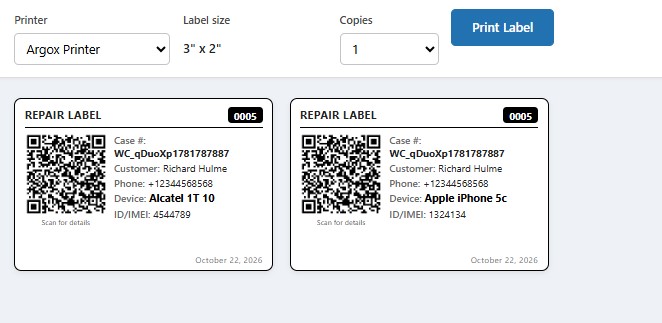
RepairBuddy supports printing repair labels or tags using different types of printers.
These labels can help staff identify and organize repair jobs within the workshop.
Contracts and signatures
Where a shop needs a customer to agree to its terms and conditions, RepairBuddy supports printing a contract for customer signature. Staff can also generate signature requests through the available workflow.
Invoice printing options
RepairBuddy supports several invoice-printing formats, including:
- A4 invoices.
- Thermal printing.
- Item-based printing.
- Vehicle-based printing for jobs involving multiple vehicles.
- Invoice PDF downloads.
Having these options allows shops to use different document formats according to their workflow and printing requirements.
15. Communicate With Customers Throughout the Repair
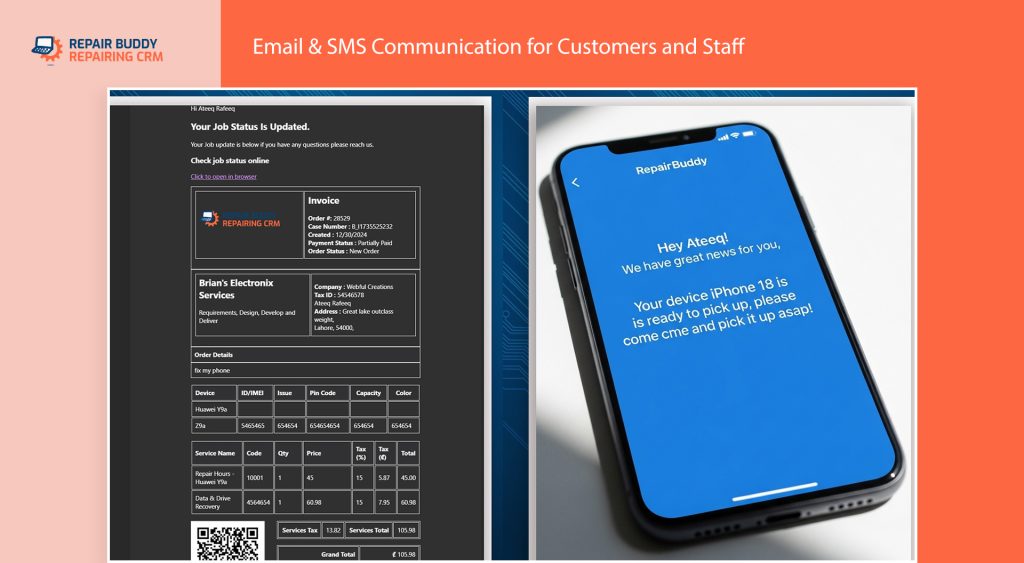
Customer communication is an important part of the repair experience. Customers want to know what is happening with their vehicles, and shops need practical ways to share updates and request information.
RepairBuddy provides several communication actions from job management, including:
- Emailing the customer.
- Sending WhatsApp updates.
- Generating signature requests.
- Printing a repair ticket that supports online job-status checking.
- Sending customer feedback requests.
These options help shops communicate at relevant points in the repair process.
For example, staff can email a customer about a job, send a WhatsApp update, or provide a repair ticket that allows the customer to check job status online.
The available communication method can depend on the shop’s workflow and configured integrations.
Keeping customer communication connected to repair management helps staff work from the same job record when handling customer updates.
16. Request Feedback After the Repair
The customer relationship does not have to end when a vehicle is delivered.
RepairBuddy supports automated or manual feedback requests to customers.
A shop can use this feature as part of its post-repair process, asking customers to share their experience after the work is completed.
Feedback can help the business understand how customers perceive its service and identify opportunities to improve its processes.
It also gives the shop a structured way to follow up with customers instead of relying entirely on staff to remember to request feedback.
17. Record the Next Service Date and Support Repeat Visits
For many vehicles, the relationship between a repair shop and its customer continues beyond one repair.
Maintenance and follow-up service provide opportunities to keep the customer relationship active.
RepairBuddy includes a next service date field on the job, and the calendar can be filtered by that date. It also supports printing a next service tag.
These features help the shop record and review future service information associated with its jobs.
For example, staff can check upcoming next service dates or print a next service tag where appropriate.
This helps make future maintenance a visible part of the workshop’s records rather than leaving it entirely to memory.
18. Duplicate Jobs When a Similar Repair Is Needed
Some workshops regularly handle similar repairs, repeat visits, or work that follows an established process.
Creating every similar job from scratch can involve unnecessary data entry.
RepairBuddy includes a Duplicate Job action, available from the jobs list and job management page.
This provides a way to duplicate an existing job when appropriate, rather than manually recreating all its information.
Staff should review the duplicated record and update any details that differ, such as the customer, vehicle, dates, services, or other job-specific information.
Used carefully, job duplication can reduce repetitive entry while keeping each repair record relevant to the actual work being performed.
19. How RepairBuddy Brings Auto Repair Job Management Together
An effective job management system should connect the workshop’s main activities rather than solving only one small part of the process.
RepairBuddy brings together job tracking, technician assignments, vehicle information, evaluations, services, parts, expenses, appointments, payments, invoices, documents, customer communication, history, feedback, and next service dates.
Its dashboard, five-stage repair board, filters, status badges, and calendar provide different ways to access and organize that information.
The result is a more connected workflow for shops that want to manage repair jobs systematically.
Rather than relying on a single list of tickets, staff can use the appropriate screen or job section to review priorities, check progress, find assigned work, document vehicle condition, handle financial records, and follow up with customers.
RepairBuddy is available as a WordPress plugin and also offers a hosted cloud option for businesses that prefer a hosted setup.
You can explore the software using the Auto Repair Shop Software demo or learn more on the Auto Repair Shop Software page.
20. A Practical Auto Repair Job Management Checklist
Use this checklist to review your current workshop process.
- Set priorities for incoming repair jobs.
- Use clear job statuses to show repair progress.
- Review urgent jobs and upcoming appointments.
- Filter jobs by status, technician, customer, and payment status.
- Record pickup dates, delivery dates, and next service dates.
- Assign the appropriate technicians to each job.
- Record vehicle details and pre-repair evaluations.
- Document services, parts, extras, and supporting files.
- Keep job expenses, payments, and invoices organized.
- Provide technicians with appropriate work orders.
- Give customers a repair ticket for online status checking.
- Keep job notes and recorded history together.
- Communicate with customers through appropriate channels.
- Request feedback after completed repairs.
- Review next service dates and follow-up opportunities.
A consistent process helps ensure that important steps are not overlooked as the workshop becomes busier.
Frequently Asked Questions
What is auto repair job management?
Auto repair job management is the process of organizing and tracking vehicle repairs from job creation through completion and delivery. It can include job statuses, technician assignments, vehicle records, work orders, payments, customer communication, and service follow-up.
What is the difference between a repair job and a work order?
A repair job is the overall record associated with a repair, including customer and vehicle information, job status, services, parts, payments, notes, and other related details.
A work order is a document used to communicate the work information needed for a repair. In RepairBuddy, the technician work order excludes customer contact details and prices.
How can an auto repair shop track jobs in progress?
A shop can use clearly defined job statuses, a visual job board, and filters to identify jobs that are new, in process, waiting for parts, ready for review, or completed. RepairBuddy provides a configurable five-stage job board and a searchable Manage Jobs screen.
Can repair shop software help assign jobs to technicians?
Yes. RepairBuddy allows multiple technicians to be assigned to a job. Where technicians record their time using time logs, those records can also be reviewed from the job management page.
Can RepairBuddy manage multiple vehicles in one job?
Yes. RepairBuddy supports adding multiple vehicles to a job. It also provides vehicle-based invoice printing for jobs involving multiple vehicles.
Can customers check their repair status online?
RepairBuddy supports printing a repair ticket that customers can use to check job status online.
Can repair shops record vehicle condition before and after repairs?
RepairBuddy supports pre-repair and post-repair evaluations. Staff can print or email evaluation reports to customers.
Can RepairBuddy record expenses and payments for a repair?
Yes. RepairBuddy supports online and offline job payments and includes an Expenses section for recording expenses related to a job.
Does RepairBuddy support customer feedback requests?
Yes. Feedback requests can be sent manually or automatically as part of the shop’s customer follow-up process.
Conclusion
Efficient auto repair job management depends on having a clear workflow, accessible job information, organized technician assignments, accurate vehicle records, and practical ways to handle documents and customer communication.
A structured process helps repair shops manage the journey from a new repair job through active work, review, delivery, and future service.
RepairBuddy brings these activities together in one repair management workflow, giving authorized users different ways to prioritize jobs, track progress, manage records, handle payments, and communicate with customers.
Ready to see how it works? Explore the RepairBuddy Auto Repair Shop Software demo and see how its job management features can fit into your workshop’s process.